What you need
For anyone who makes talking videos and doesn't want to learn editing apps. You type, Claude edits.
- Download the app from claude.com/download.
- Log in with your paid Claude account.
- Click the Code tab. You type to Claude in the box at the bottom.
When Claude asks "Can I do this?", read it and click allow if it matches what you asked for.
Add the skills
Skills are like little instruction manuals for Claude. Once they're added, Claude knows how to make videos and animations properly. You don't install anything yourself. You copy one message, send it, and Claude does it for you.
First, make a folder for your videos
- On your desktop, make a new folder and call it My Reels.
- In the Claude app, go to the Code tab and start a new session. When it asks which folder to work in, pick My Reels.
The three skills you're adding
HyperFrames
The main oneThis is what actually makes the video. It lets Claude build each effect, show you a preview, and save the finished video file. Made by HeyGen, free to use.
GSAP skills
Smoother movementHelps Claude make the movement feel smooth and polished, like text gliding in nicely instead of just appearing. From the team behind GSAP, the animation tool HyperFrames uses.
Anthropic's example skills
ExtrasA free pack from the company that makes Claude. It helps Claude design nicer looking pages (handy for the dashboard at the end of this guide), and it can turn your whole editing process into your own skill later.
Copy this and send it to Claude
I'm a beginner and I don't code. Please add these three skills to Claude Code for me:

1. HyperFrames: run "claude plugin marketplace add heygen-com/hyperframes" and then "claude plugin install hyperframes@hyperframes"
2. GSAP skills: run "claude plugin marketplace add greensock/gsap-skills" and then "claude plugin install gsap-skills@gsap-skills"
3. Anthropic example skills: run "claude plugin marketplace add anthropics/skills" and then "claude plugin install example-skills@anthropic-agent-skills"

HyperFrames also needs Node.js (version 22 or newer) and FFmpeg on my computer. Check if I have them, and if not, install them for me.

Tell me in simple words what you did, and tell me when I should close and reopen the app.
When Claude says it's finished, close the Claude app completely and open it again. That's how it picks up the new skills. Then go back to the Code tab in your My Reels folder.
Make it look like you: your brand kit
Everyone's brand is different. My videos use my colours (forest green, mint and ivory), my fonts, and a calm, clean look, because I gave Claude my brand kit. Yours should look like you, not like me. A brand kit is a short note with your colours, fonts and style. Claude saves it in your My Reels folder and uses it for every video, so you only do this once.
Already have a brand? Send this
Fill in what you know and leave the rest blank. You can also drag in a screenshot of your Instagram grid, website or logo, and Claude will pick out the colours for you.
Here's my brand. Save it as my brand kit in a file called brand-kit.md in this folder, and use it for every video we make.

- Main colour: [colour or colour code]
- Background colour: [colour]
- Accent colour (for highlights): [colour]
- Headline font: [font name]
- Body font: [font name]
- My logo: [drag the file in, or "none"]
- The vibe in three words: [for example calm, warm, premium]
- Captions: [for example "big, above my head, one highlighted word per line"]

If I've attached a screenshot, pull the exact colours from it. If anything is missing, suggest something that fits. Then show me my brand kit on one page so I can see the colours and fonts together.
No brand yet? Let Claude help you make one
I don't have a brand yet. Help me make a simple brand kit for my videos.

First ask me five short questions about me, my audience and how I want my videos to feel. Then show me three different looks on one page I can open in my browser. For each look, give me a colour palette (a main colour, a background, one accent), a pair of free fonts, a caption style, and a sample caption that looks the way it would in my video.

When I pick one, save it as my brand kit in brand-kit.md in this folder and use it for every video we make.
My tip: use one accent colour and use it sparingly, only on the word you want people to notice. That alone makes a video look more premium.
The start prompt
This one makes a tiny test video in your brand, so you know everything works before you try your real video.
I'm not a coder and I've never edited video. I want you to be my video editor using HyperFrames.

1. Check the HyperFrames skills are working.
2. Make a short test video for Instagram Reels (vertical, 1080x1920): a plain background with the words "It works" animating in. Save it as a video file and tell me where to find it.

Use my brand kit (brand-kit.md) for the colours, fonts and caption style, and never put text over my face.

Explain things simply, and ask me before you delete anything.
If the test video doesn't feel like you yet, just say so: "Warmer colours." or "Make the font bolder." Claude updates your brand kit as you go.
Give Claude your video, then ask for a storyboard
This is what makes it work. Before Claude makes anything, it shows you a storyboard: every scene in a grid, with a picture and a note about what will happen. You check the plan first, so you never wait on a video you don't like.
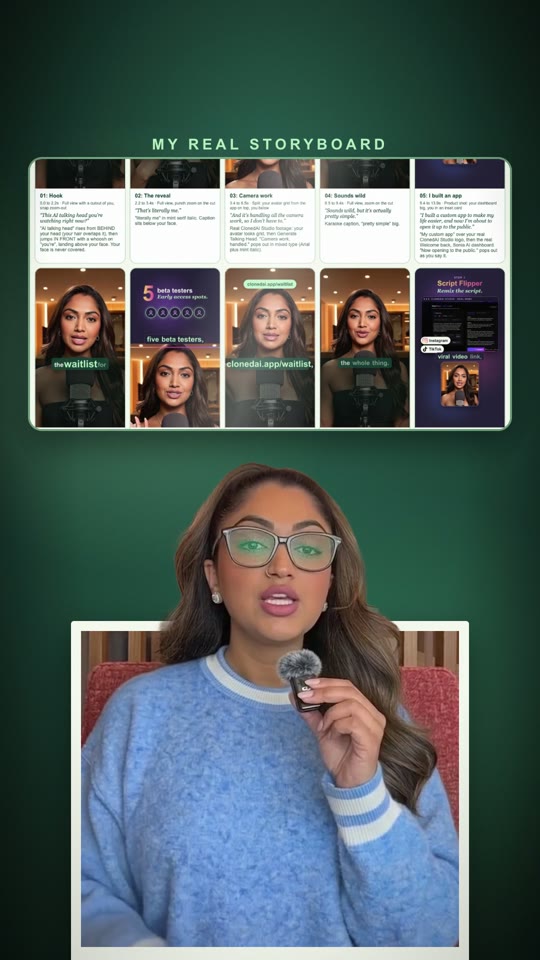
A word you'll see a lot: "render" just means making the final video file. It can take a few minutes, which is why you approve the plan on pictures first.
1. Give Claude your video
Put your video file in your My Reels folder, or drag it straight into the Claude message box.
Here's my video: [drag the file in, or type its name]. Make a new project for it called "[video name]".

Write down everything I say, with the exact time of every word, so you know when to make each effect happen. Show me the words and times so I can check them first.
Optional: show Claude reels you love
This is how I got my style. I gave Claude links to a few reels I liked, it studied how they were edited, and remixed that style in my brand.
- On Instagram or TikTok, tap Share on a reel you like and copy the link. Two or three is plenty.
- Paste the links into this message and send it.
Here are reels I love the editing in: [paste links]. Study how they're edited (pacing, captions, effects, transitions, sound) and write me a short style note. Then plan my video in that style, using my brand kit and my own words. Don't copy their footage or script.
If Claude can't open a link, save the reel or take a few screenshots and drag them in instead.
2. Ask for the storyboard
Before you render anything, show me a storyboard. Every scene in a grid.

For each scene, show me a picture from that moment, a scene number, the time, the words I'm saying, and what will happen on screen. Put it on one page I can open in my browser, and list any questions you have for me at the end.

Don't render until I say "go".
Type one sentence
Once the storyboard is up, you edit one sentence at a time. Two from my video:
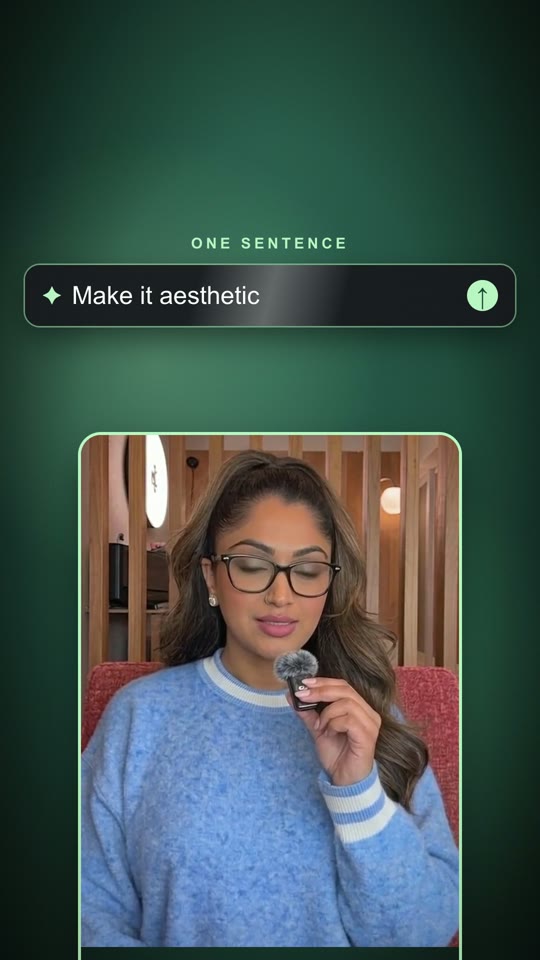
Make it aesthetic.
Make the captions huge on the word "[word]".
Want a change? Just say it, as short as "Tighter cut." or "Bigger text."
Make it look premium
Let it breathe: fewer, bigger moments, not an effect on every line. Captions above my head, never over my face, inside the Instagram safe zone. Smooth transitions, light sound effects, music at 10%.
Every effect from my videos has its own message further down.
Make the final video
When the storyboard looks right, tell Claude to go.
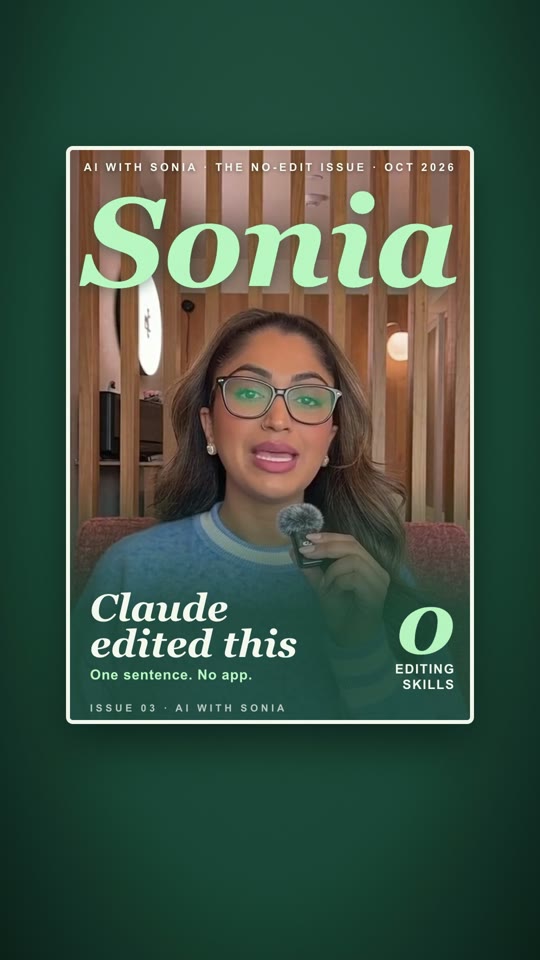
Go. Render the final video for Instagram Reels (vertical, 1080x1920).

When it's done, tell me where the file is. Then watch it back against the storyboard and tell me if any effect starts on the wrong word or covers my face.
Still want a change after it's made? Same as before: just say it ("Bigger text."), and ask Claude to render again.
After your first video, send this: "Save everything we did today as my own skill called my-reel, so next time I can just say 'edit this with my-reel'."
Every effect, with its message
All 43 effects from my videos are here, in one place. Find one you like, copy its message, and change [word] to the word in your video where you want it to start.
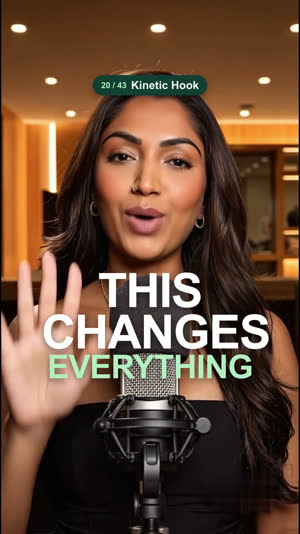
Add a "Kinetic Hook" effect on the word "[word]": hook words slam in one by one under your face. Keep it 2 to 3 seconds and keep text off my face.
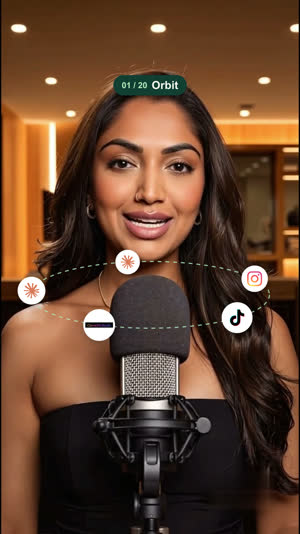
Add a "Orbit" effect on the word "[word]": app or tool icons circle your head on a dotted ring. Keep it 2 to 3 seconds and keep text off my face.
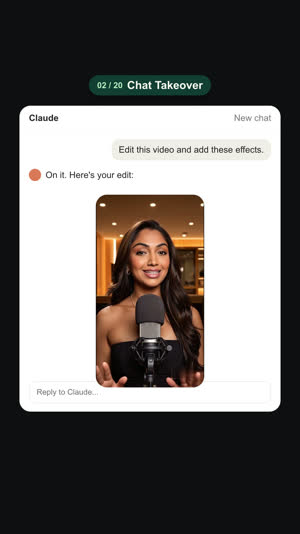
Add a "Chat Takeover" effect on the word "[word]": you shrink into an AI chat window as if the reel is the AI's answer. Keep it 2 to 3 seconds and keep text off my face.
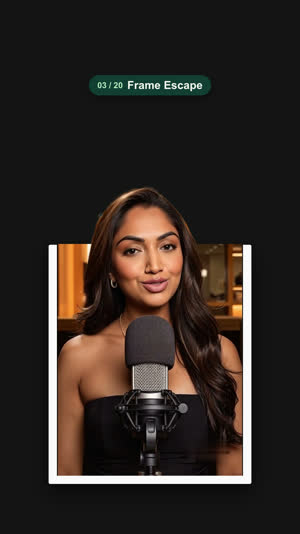
Add a "Frame Escape" effect on the word "[word]": the video shrinks into a photo frame and your head pops out of it. Keep it 2 to 3 seconds and keep text off my face.
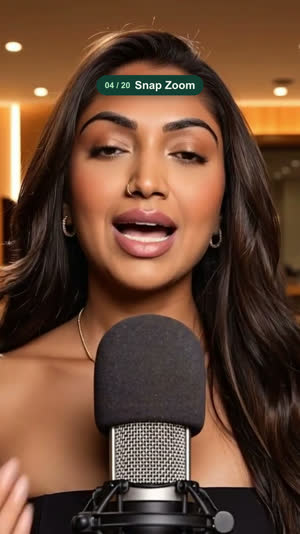
Add a "Snap Zoom" effect on the word "[word]": a fast punch-in with a motion blur flash. Keep it 2 to 3 seconds and keep text off my face.
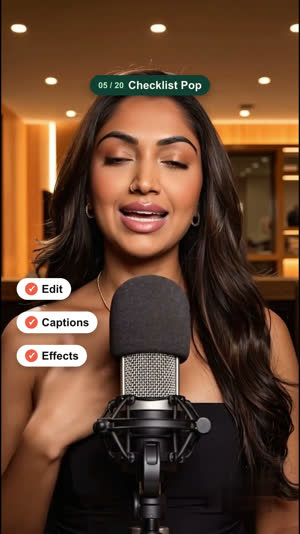
Add a "Checklist Pop" effect on the word "[word]": ticked pills pop in beside you one by one. Keep it 2 to 3 seconds and keep text off my face.
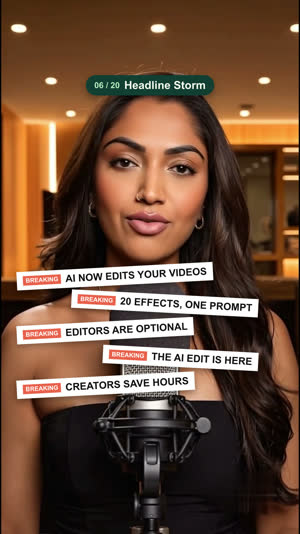
Add a "Headline Storm" effect on the word "[word]": news headline strips fly in around you. Keep it 2 to 3 seconds and keep text off my face.
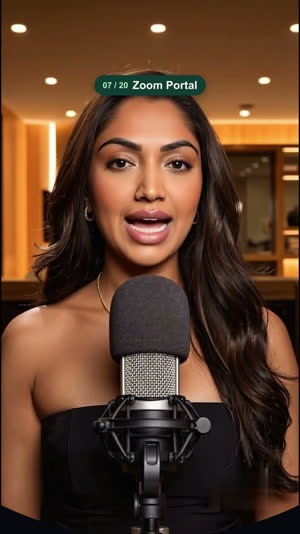
Add a "Zoom Portal" effect on the word "[word]": a small circle window opens up into the full shot. Keep it 2 to 3 seconds and keep text off my face.
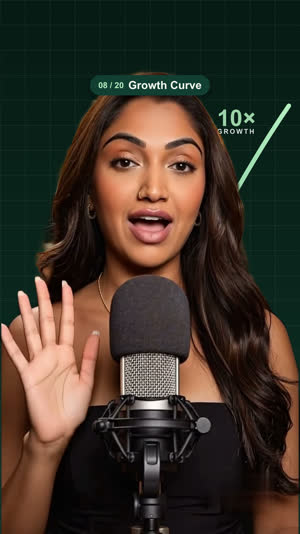
Add a "Growth Curve" effect on the word "[word]": a rising chart line draws behind you with a big multiplier. Keep it 2 to 3 seconds and keep text off my face.
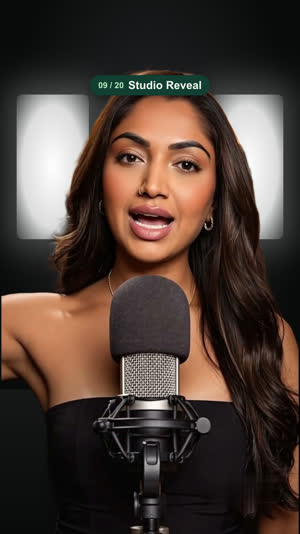
Add a "Studio Reveal" effect on the word "[word]": you appear on a dark studio set with light panels and an ON AIR sign. Keep it 2 to 3 seconds and keep text off my face.
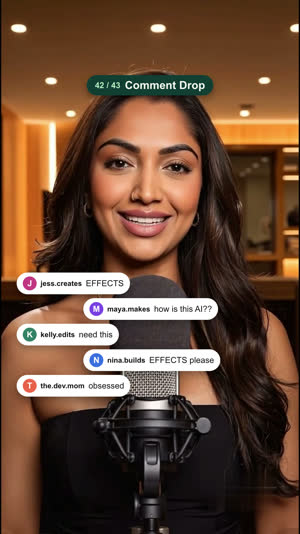
Add a "Comment Drop" effect on the word "[word]": comment bubbles fall in and stack below your face. Keep it 2 to 3 seconds and keep text off my face.
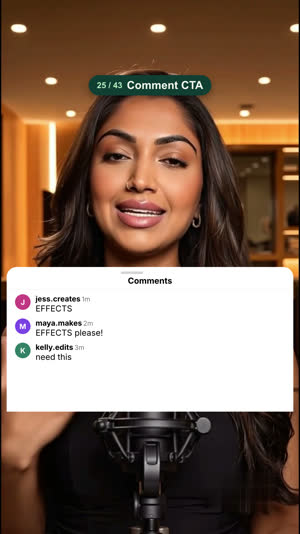
Add a "Comment CTA" effect on the word "[word]": an Instagram comments sheet fills with your keyword. Keep it 2 to 3 seconds and keep text off my face.
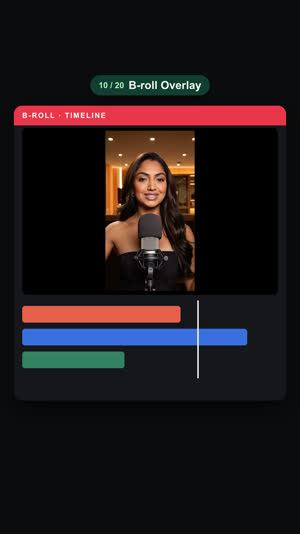
Add a "B-roll Overlay" effect on the word "[word]": an editing timeline window plays you inside it. Keep it 2 to 3 seconds and keep text off my face.
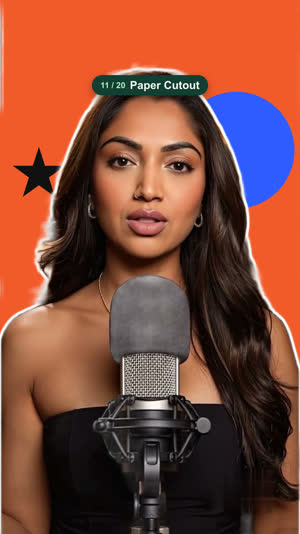
Add a "Paper Cutout" effect on the word "[word]": you as a white-outlined sticker on bold paper shapes. Keep it 2 to 3 seconds and keep text off my face.
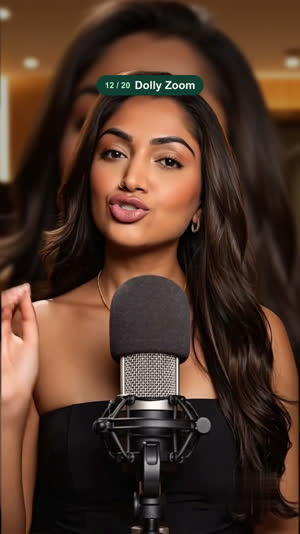
Add a "Dolly Zoom" effect on the word "[word]": the background pushes while you stay the same size (the Vertigo effect). Keep it 2 to 3 seconds and keep text off my face.
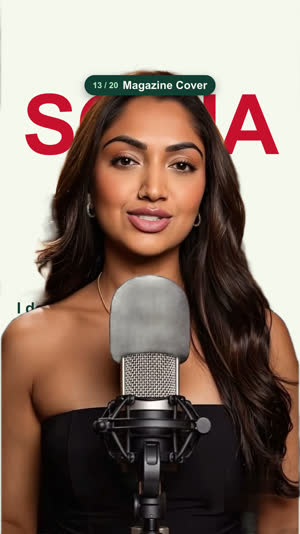
Add a "Magazine Cover" effect on the word "[word]": a magazine masthead sits behind your head with cover lines. Keep it 2 to 3 seconds and keep text off my face.
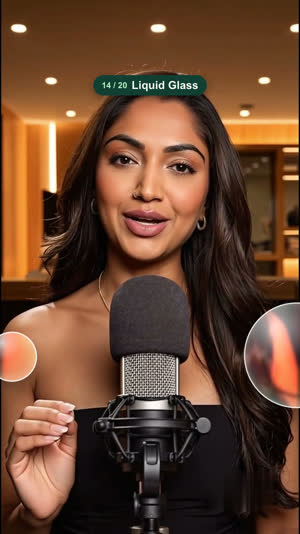
Add a "Liquid Glass" effect on the word "[word]": a glass lens glides across the frame and bends the image. Keep it 2 to 3 seconds and keep text off my face.
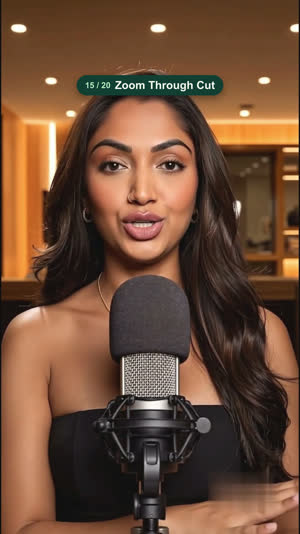
Add a "Zoom Through Cut" effect on the word "[word]": the shot zooms into blur and cuts through to the next. Keep it 2 to 3 seconds and keep text off my face.
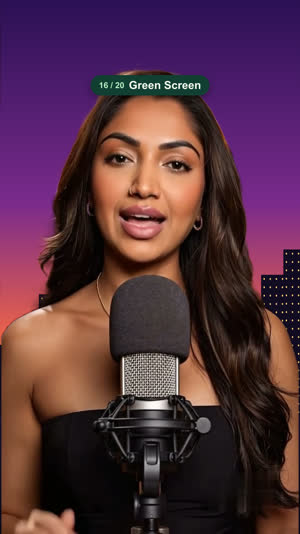
Add a "Green Screen" effect on the word "[word]": your background is replaced (city skyline, studio, brand colours). Keep it 2 to 3 seconds and keep text off my face.
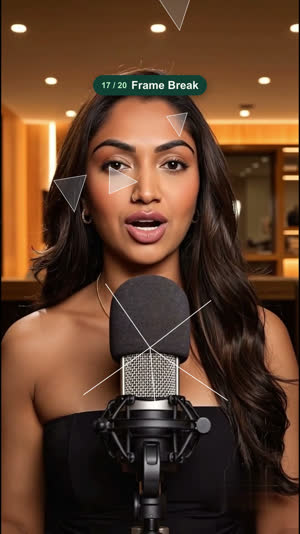
Add a "Frame Break" effect on the word "[word]": the frame shatters into glass shards. Keep it 2 to 3 seconds and keep text off my face.
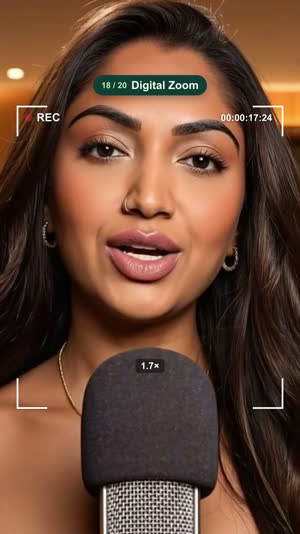
Add a "Digital Zoom" effect on the word "[word]": a camcorder REC viewfinder with stepped zoom-ins. Keep it 2 to 3 seconds and keep text off my face.
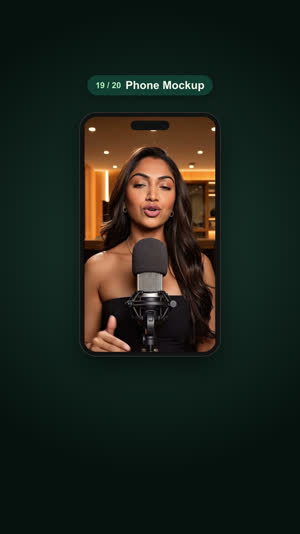
Add a "Phone Mockup" effect on the word "[word]": you play inside a phone frame. Keep it 2 to 3 seconds and keep text off my face.
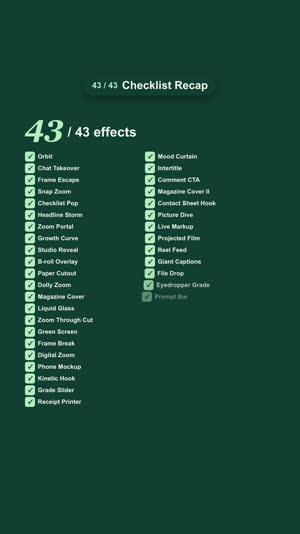
Add a "Checklist Recap" effect on the word "[word]": an end card that ticks off everything covered. Keep it 2 to 3 seconds and keep text off my face.
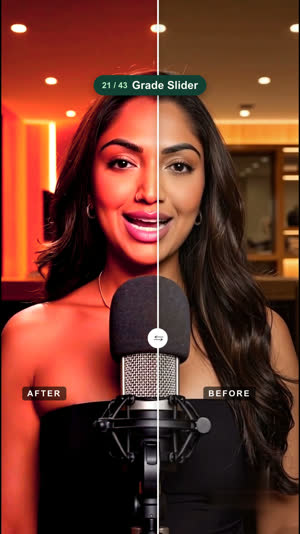
Add a "Grade Slider" effect on the word "[word]": a graded version wipes across with a before/after slider. Keep it 2 to 3 seconds and keep text off my face.
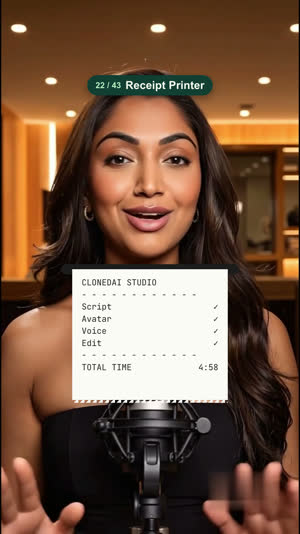
Add a "Receipt Printer" effect on the word "[word]": a receipt prints out listing the steps and total time. Keep it 2 to 3 seconds and keep text off my face.
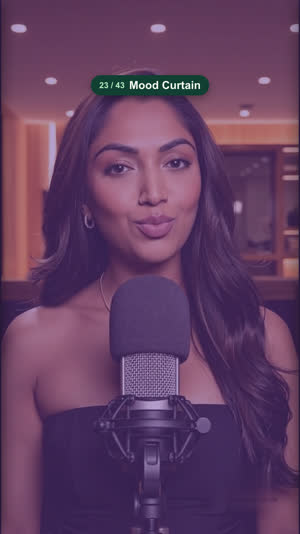
Add a "Mood Curtain" effect on the word "[word]": curtains sweep closed and open on a new colour mood. Keep it 2 to 3 seconds and keep text off my face.
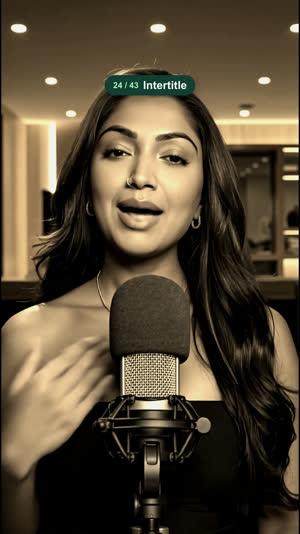
Add a "Intertitle" effect on the word "[word]": a silent-film title card, then you in vintage tone. Keep it 2 to 3 seconds and keep text off my face.
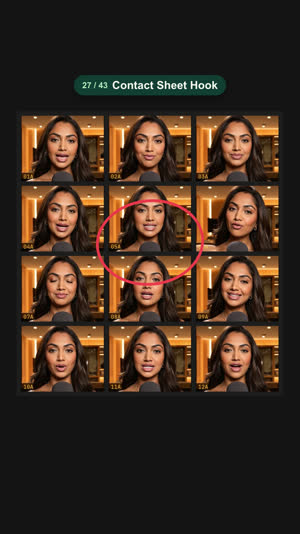
Add a "Contact Sheet Hook" effect on the word "[word]": a film contact sheet of your shots; one is circled and we zoom into it. Keep it 2 to 3 seconds and keep text off my face.
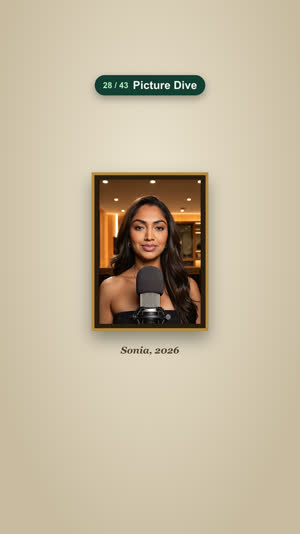
Add a "Picture Dive" effect on the word "[word]": the camera dives into a framed picture of you on a wall. Keep it 2 to 3 seconds and keep text off my face.
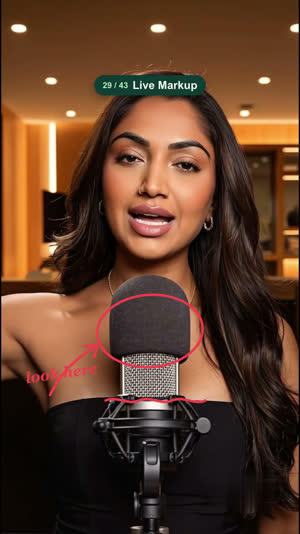
Add a "Live Markup" effect on the word "[word]": red marker circles, arrows and notes draw on live. Keep it 2 to 3 seconds and keep text off my face.
Add a "Projected Film" effect on the word "[word]": you projected on a wall with a light beam, flicker and grain. Keep it 2 to 3 seconds and keep text off my face.
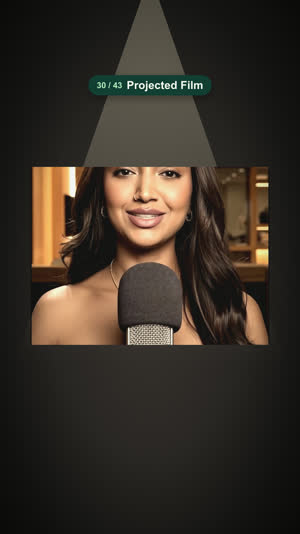
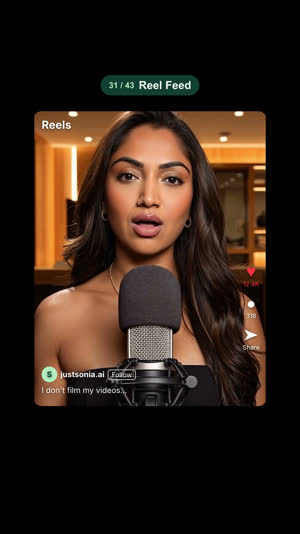
Add a "Reel Feed" effect on the word "[word]": you inside an Instagram Reels feed with a heart pop. Keep it 2 to 3 seconds and keep text off my face.
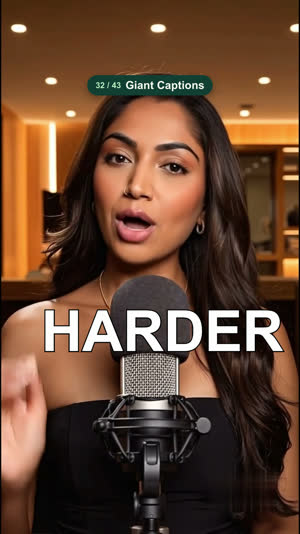
Add a "Giant Captions" effect on the word "[word]": huge full-width caption words, one at a time. Keep it 2 to 3 seconds and keep text off my face.
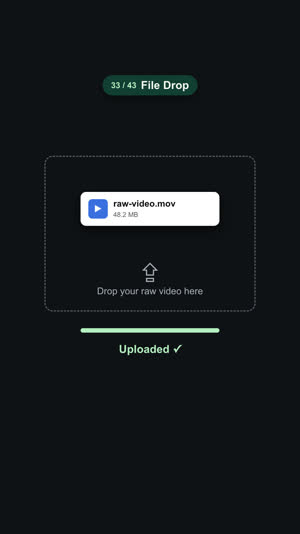
Add a "File Drop" effect on the word "[word]": a raw video file drops into an upload box and uploads. Keep it 2 to 3 seconds and keep text off my face.
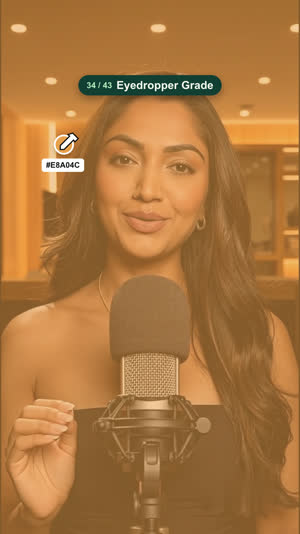
Add a "Eyedropper Grade" effect on the word "[word]": an eyedropper picks a colour from the frame and regrades the scene. Keep it 2 to 3 seconds and keep text off my face.
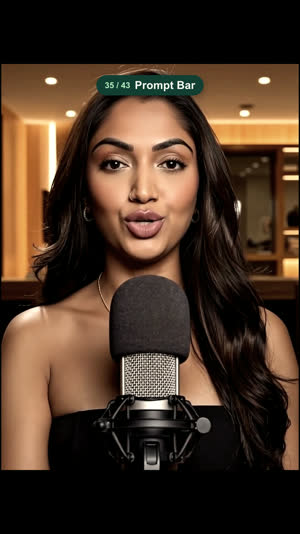
Add a "Prompt Bar" effect on the word "[word]": an AI prompt types and sends, and the shot turns cinematic. Keep it 2 to 3 seconds and keep text off my face.
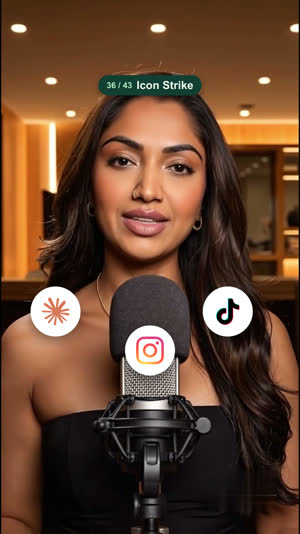
Add a "Icon Strike" effect on the word "[word]": app icons strike in with an impact shake. Keep it 2 to 3 seconds and keep text off my face.
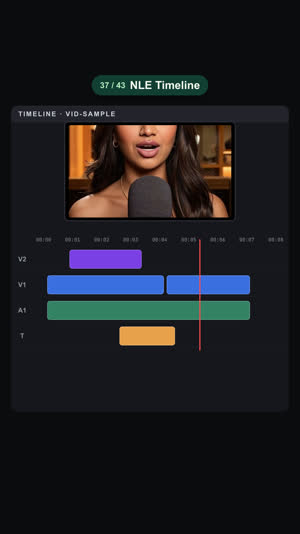
Add a "NLE Timeline" effect on the word "[word]": an editing timeline with clips snapping onto tracks. Keep it 2 to 3 seconds and keep text off my face.
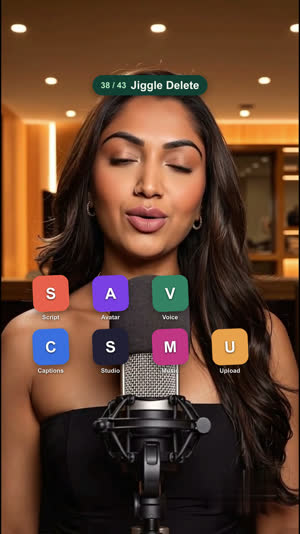
Add a "Jiggle Delete" effect on the word "[word]": iPhone-style jiggling app icons; one gets deleted. Keep it 2 to 3 seconds and keep text off my face.
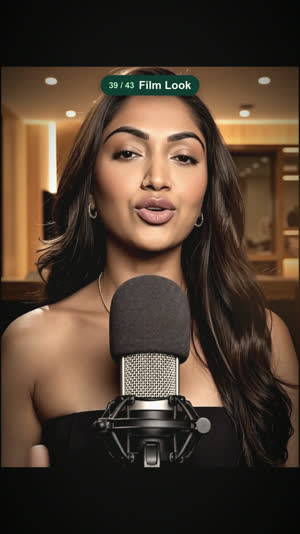
Add a "Film Look" effect on the word "[word]": letterbox, grain, light leak and a warm film grade. Keep it 2 to 3 seconds and keep text off my face.
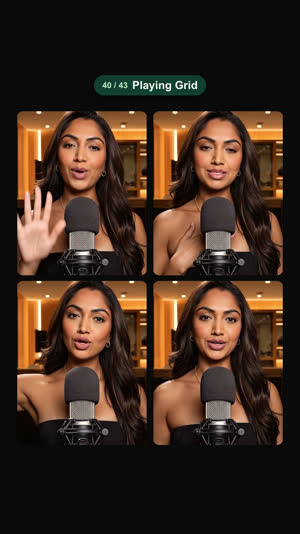
Add a "Playing Grid" effect on the word "[word]": four clips of you playing at once in a grid. Keep it 2 to 3 seconds and keep text off my face.
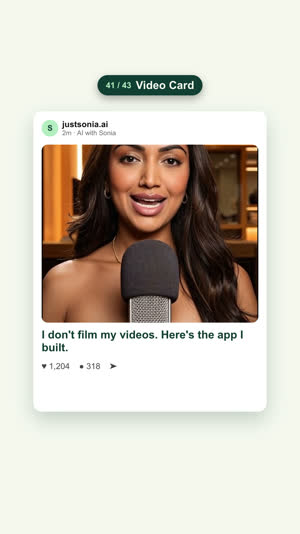
Add a "Video Card" effect on the word "[word]": you inside a social post card with title and likes. Keep it 2 to 3 seconds and keep text off my face.
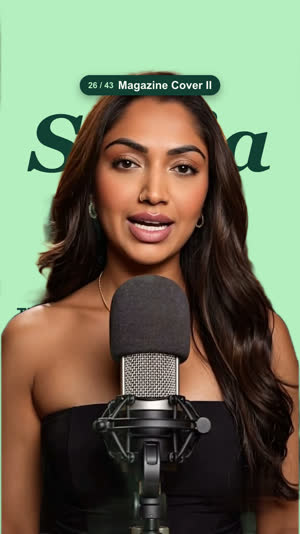
Add a "Magazine Cover II" effect on the word "[word]": a second magazine cover in your brand colours, masthead behind your head. Keep it 2 to 3 seconds and keep text off my face.
Your video won't look exactly like mine, and that's fine. Claude built these effects for my videos using the same HyperFrames skill you just added. When you send one of these messages, Claude makes its own version to fit your video and your colours.
Want more? There are lots more
These 43 are just the ones I picked. HyperFrames has a whole free catalog of ready-made scenes, transitions, captions, overlays and effects you can use too. Have a browse:
Or just ask Claude to look for you:
Search the HyperFrames catalog for effects that would suit my video. I'm looking for [describe it, for example "a glitch transition" or "fun captions"]. Show me your top 5 with a one-line description of each, then add the one I pick to the storyboard.
Build your own content dashboard
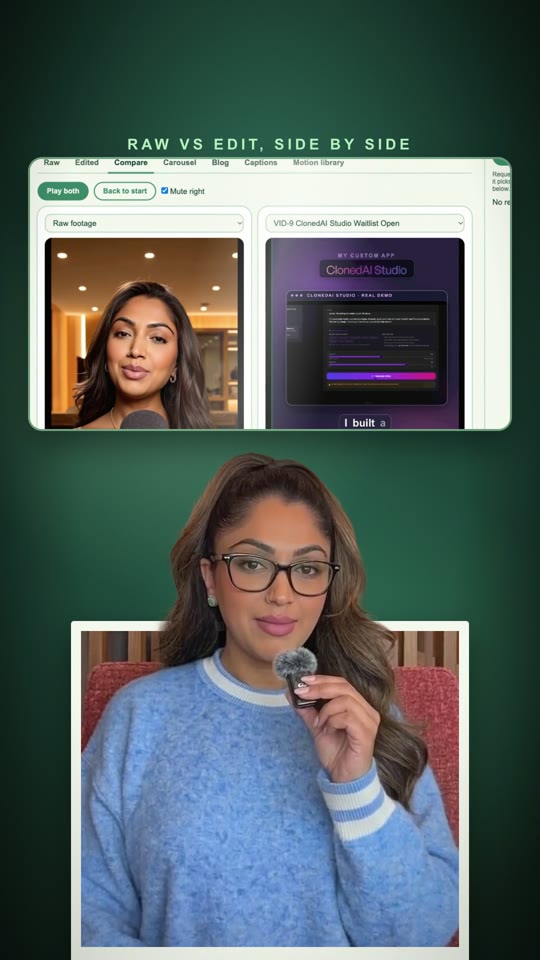
I had Claude build me my own content dashboard. One page on my laptop where every video lives: my raw video and my edit side by side, plus the carousel, blog post and captions I make from it. It only lives on your computer, so there's nothing to pay for.
Start with this message
Build me a content dashboard I can open in my web browser, just for me on this computer, for all the videos in this folder.

- On the left: a list of my videos with a small picture of each, newest first.
- For the video I click: tabs across the top for Raw, Edited, Compare, Storyboard, Carousel, Blog, Captions and Motion library.
- Keep each video's captions, blog post and slides saved inside that video's folder, so you can read and update them whenever I ask.
- At the top: a spot for the keyword people comment and the link I send them.

Use my brand colours and fonts. Start with just the Raw and Edited tabs, open it for me, and tell me how to open it again next time. We'll add the other tabs one at a time.
Then add one tab at a time
Add the Compare tab: my raw video and my edit, side by side. Let me swap either one for any other version of the video. One button plays both at the same time, one slider moves through both, and only one of them has sound.
Add the Storyboard tab: show the storyboard you make me before each final video. Pictures in a grid, each with its shot number, time, the words I'm saying and what happens on screen, then your questions for me at the end.
Add three tabs that turn this video into more content:
- Carousel: Instagram slides made from the script. I can change the words on each slide and the slide updates.
- Blog: a blog post from the video, with the text on one side, a preview on the other, and a Copy button.
- Captions: three or four caption options I can choose from and copy, with hashtag sets underneath.
Write the first version of each from this video.
Add the Motion library tab: every effect you can make for me, each with a name, a picture, what it does and when to use it. A search box and category buttons at the top. Let me tick several effects and send them to you in one go, with "try these in this video, storyboard first".
Add an "Ask Claude" box on the right side of every tab, where I can type a change and press Send. Save my requests in the video's folder. When I tell you "check the dashboard", do the requests and write a short reply under each one, so I can see what you changed.
If something looks off, just say so in normal words: "The two videos in Compare are different sizes, make them match." You never have to look at any code.
The talking head in my reels is my AI avatar, made in ClonedAI Studio
It's the app I built to make my own videos. Paste a script, pick your avatar and voice, and you get a talking-head video to edit with everything above. The waitlist is open now.